Drawing Apps: Draw, Sketch Pad
Photo Editor Apps Maker StudioArt & Design
4.1494.00 Reviews
- Version
- 1.9.4
- Installs
- 10.00M
- Age Rating
- Everyone
Screenshots
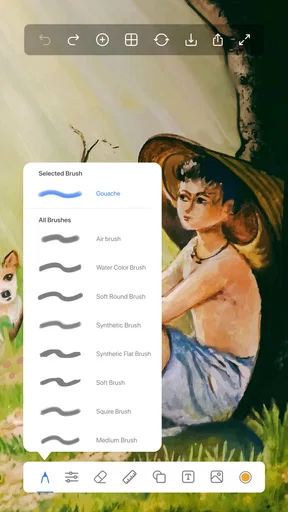
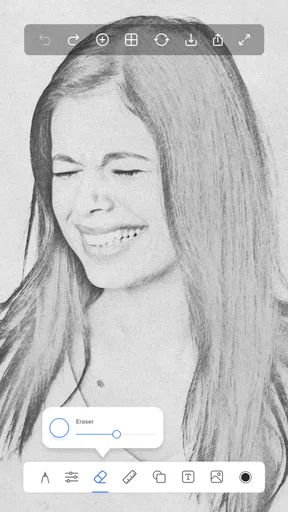
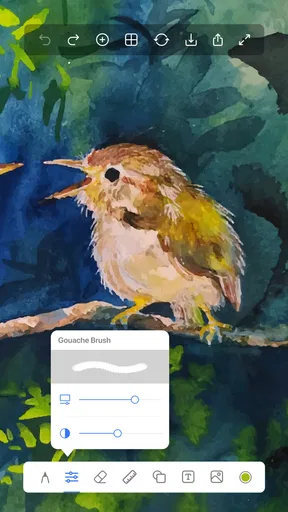
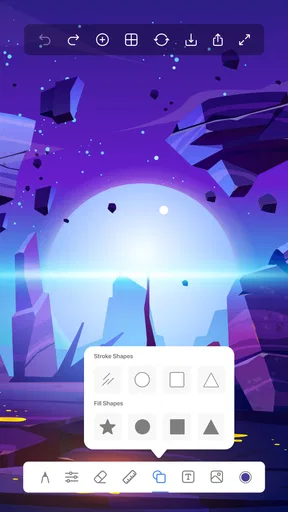
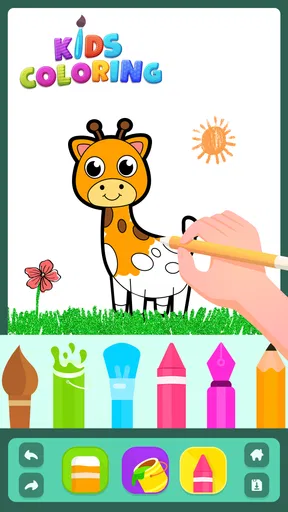
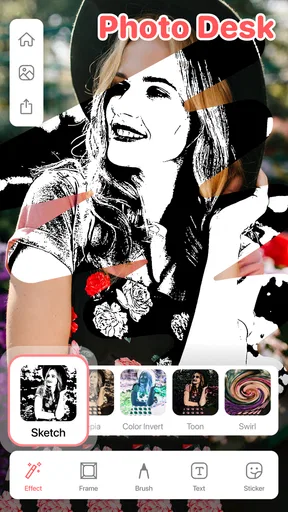
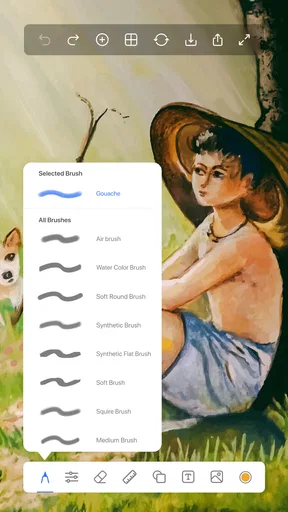
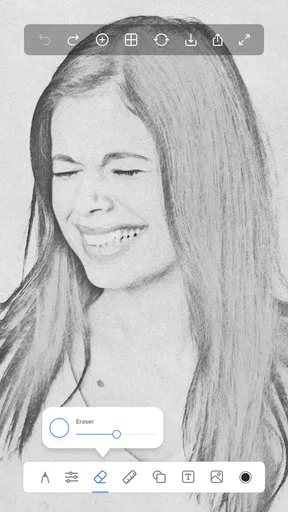
Our Review of Drawing Apps: Draw, Sketch Pad
 Analysis by Appyee
Drawing Apps: Draw, Sketch Pad is the kind of art app I reach for when I want to put an idea on screen quickly rather than build a complete professional illustration. It covers drawing, painting, doodling, coloring, and sketching in one approachable workspace, so it feels suitable for a child exploring colors as well as an adult making visual notes. After spending time with it, my impression is that its biggest strength is the low barrier to starting: you can open it with a simple goal and begin making marks without first learning a complicated creative suite.
The app sits in the Art & Design category and comes from Photo Editor Apps Maker Studio. It is free to install, with optional purchases ranging from $6.99 to $13.99 per item. That combination makes it easy to try before spending anything, although I would still treat the free experience as a test of your actual routine rather than assuming every tool or convenience will remain available without an upgrade. The content rating is Everyone, which fits the broad, family-friendly nature of a drawing pad.
How I use it for quick sketches and repeatable drawing habits
My most useful starting point is to give each session a narrow purpose. Instead of opening the canvas and trying to create a finished picture immediately, I decide whether I am making a rough composition, practicing lines, filling a coloring page, or saving a visual reminder. That small decision keeps the app from becoming a collection of abandoned doodles and makes its simple interface work in its favor.
For a basic sketch, I begin with large shapes and loose strokes. I avoid zooming in too early because rough proportions are easier to judge when the whole canvas remains visible. Once the main arrangement feels right, I add smaller marks and color. This is particularly useful on a phone, where detailed work can become cramped and accidental touches are more noticeable than they would be on a tablet.
A practical everyday example is planning a room decoration. I can draw a quick wall, place rough furniture blocks, test a few color combinations, and keep the result as a visual reference. I would not use this as a replacement for a measured design tool, but it is faster than describing the idea in text and more flexible than searching for a matching image. The same workflow works for a handwritten-style card, a school project outline, or a simple character pose.
Coloring is another area where the app feels approachable. I find it better to establish a limited palette before filling large areas. Choosing two or three main colors and one accent prevents a casual drawing from becoming visually noisy. If I am working with a child, I let the first pass be completely unrestricted, then use a second pass to talk about warm and cool colors or how a darker shade can suggest depth. That makes the app useful as a creative activity rather than only a place to pass time.
The key habit is saving progress at natural stopping points. A sketch often looks unfinished when viewed minute by minute, but it can become a useful reference later. I prefer to stop after the main shapes, after the first color pass, and after final details. Those pauses also make it easier to abandon an idea without feeling that the entire session was wasted.
Settings that deserve attention before a serious session
Before drawing something I care about, I spend a moment checking the available brush, color, and canvas controls instead of changing them randomly while working. The most important choice is usually the mark itself: a broad stroke is helpful for blocking areas, while a finer one is more appropriate for outlines and small details. Switching deliberately between those roles gives a cleaner result than trying to make one brush do everything.
I also recommend testing pressure and touch behavior on an empty part of the canvas, especially on a phone. Different screens respond differently to finger movement, and a stroke that feels controlled in one session may feel too heavy or too light in another. A short test line tells me whether I should slow down, use shorter movements, or enlarge the brush for more predictable coverage.
Color selection deserves its own check. I like to place potential colors beside one another before committing to the drawing. This exposes combinations that look attractive in a color picker but clash on the canvas. For simple illustrations, a restrained palette is usually more forgiving than a large collection of nearly identical shades, particularly when the screen is small.
Canvas orientation is another decision worth making early. A portrait layout suits a character, card, or phone wallpaper, while a landscape layout gives more room for a scene or a visual plan. Changing direction after the composition has developed can make the drawing feel cramped, so I decide based on the final use rather than the shape that happens to appear first when the app opens.
I would also check how the app handles undo and clearing before allowing a child to experiment freely. Undo is not merely a rescue button; it supports a better way of working. I can make a bold stroke, evaluate it, and remove it without becoming overly cautious. That encourages exploration, but I still avoid treating undo as a substitute for saving. A long chain of corrections can make a session fragile if the wrong action is selected.
Because the app is rated for Everyone, it is a reasonable shared activity, but supervision still helps younger users understand the difference between clearing a canvas and correcting one mark. I would set up the canvas first, choose a small range of colors, and explain how to step back from mistakes before handing over the device. That reduces frustration and keeps the creative part central.
Faster patterns that make simple tools more effective
Experienced use here is less about secret commands and more about repeating a dependable sequence. My preferred pattern is rough layout, clean outline, broad color, then detail. I do not begin with tiny decorative marks because they can make a weak composition feel deceptively finished. By postponing detail, I can identify whether the drawing works at a glance before investing time in it.
For repeated objects, I use one finished example as a visual guide rather than redrawing each item from memory. If I am making a row of leaves, stars, or windows, I first decide on the size and angle of one representative shape. The later copies do not need to be identical, but keeping a shared reference makes the whole picture feel intentional and saves time.
Another useful technique is to work from the background toward the foreground. I fill the broadest areas first, then add objects that should sit in front, and leave highlights or small accents until the end. This order reduces the chance of covering details accidentally and makes color decisions easier because each new area can be judged against what is already present.
When I am creating a sketch for someone else, I use stronger contrast than I would for a private practice page. A recipient may view the image on a different screen or at a smaller size, so delicate lines can disappear. A darker outline and a simpler palette often communicate the idea more successfully than extra detail. This is one reason I see the app as a strong tool for visual communication, even when it is not the best choice for polished illustration.
I also keep a small set of recurring exercises. One is filling a page with controlled lines that change direction gradually. Another is drawing the same basic object in three sizes. A third is creating a monochrome version before adding color. These exercises reveal whether my difficulty comes from the app’s controls or from my own hand control and planning. They also make short sessions productive when I only have a few minutes.
For children, I would turn those exercises into small challenges: draw a house using only a few shapes, make a picture with one dominant color, or create a pattern without lifting a finger from the screen for each line. The app’s simplicity supports these constraints well. It does not need a large feature set to encourage observation, repetition, and confidence.
Where the app reaches its limits
The same simplicity that makes Drawing Apps: Draw, Sketch Pad welcoming can become restrictive for demanding work. I would not choose it for a professional illustration pipeline, complex layer management, detailed photo compositing, or precise vector artwork. Users who need advanced masking, extensive brush customization, color-management controls, or highly structured project organization will likely be more comfortable in a dedicated drawing suite.
It is also not the best match for someone who wants a full desktop-style workflow on a mobile device. A larger creative application may take longer to learn, but it can provide more control over revisions and file organization. If your work depends on returning to individual elements weeks later, the convenience of a simple sketch pad may not compensate for the lack of a deeper production system.
There is a trade-off in the free model as well. The app costs nothing to start, which is valuable for casual users, families, and anyone testing whether mobile drawing suits them. Optional purchases are available at $6.99 to $13.99 per item, so I would first establish a real habit with the free version and only then decide whether the paid additions improve the way I work. A purchase makes more sense for frequent users than for someone who opens the app once for a single coloring session.
Device choice affects the experience. On a phone, the app is convenient for quick ideas, but the smaller surface makes long drawing sessions less comfortable and leaves less room for the hand. A tablet is naturally better for broad gestures and larger compositions, although the app’s usefulness still depends on how accurately the screen registers touch. I would not buy a device specifically for this app; I would use the device I already own and judge whether the canvas feels comfortable.
People looking for social collaboration, animation, or a structured art course should also look elsewhere. This is a hands-on canvas, not a substitute for guided lessons or a shared studio. Its value comes from immediate making, not from teaching a complete artistic method. That distinction matters because a friendly interface can make starting easy without automatically providing the feedback needed to improve advanced technique.
Who should install it and who should choose something else
I think it is a good fit for beginners who want to draw without facing a crowded professional interface. It also suits parents looking for a simple creative activity, students making rough visual notes, and adults who want a casual place for doodles or color experiments. The broad mix of drawing, painting, sketching, and coloring means it can serve several moods without requiring a separate app for every small task.
The app has also built a substantial audience, with more than ten million installs and an average rating of 4.1 from roughly thirteen thousand ratings. Those figures suggest that its accessible approach resonates with many users, but they should not replace your own test. A person seeking advanced illustration controls may be disappointed even if the app works perfectly for casual sketching.
Its release was on September 5, 2022, and the current version is 1.9.4. It requires Android 7.0 or later, which keeps it available to many older Android devices. I would still check the app’s behavior on the specific phone or tablet I plan to use, especially before starting a long project. Compatibility is only one part of comfort; screen size and touch response matter just as much for drawing.
I would skip it if your main goal is precision design, professional asset delivery, or a carefully organized archive of editable artwork. In those cases, a more specialized alternative is worth learning. I would also skip it if you dislike experimenting with touch controls, because mobile drawing always involves some adjustment and this app is designed around direct interaction rather than a full set of desktop conveniences.
My verdict after building a practical routine
My final view is positive, with a clear boundary around what I expect from it. Drawing Apps: Draw, Sketch Pad is strongest as an immediate, low-pressure creative surface. It helps me turn a thought into a visible sketch, practice simple control, or spend time coloring without a long setup. The best results come from using a repeatable order of work, checking brush and canvas choices before beginning, and treating each session as a small project rather than expecting professional depth.
The app is free, suitable for Everyone, and developed by Photo Editor Apps Maker Studio, so it is easy to recommend as a first experiment for Android users who meet the minimum system requirement. I would encourage a new user to make several different kinds of drawings before considering an in-app purchase: one quick doodle, one colored scene, one repeated pattern, and one sketch made in stages. That test reveals whether the controls match your hand and whether the available workflow is enough for your needs.
My strongest recommendation is to use it for speed and practice, not for work that depends on advanced editing. In that role, it feels friendly, flexible, and genuinely useful. It gives beginners a place to start and experienced casual users a convenient canvas for ideas. When your projects demand layers, precision, or a more serious production pipeline, move to a specialized art tool. For everyday doodling, coloring, and visual thinking, though, this is a sensible app to keep available.
Verdict
Strengths of Drawing Apps: Draw, Sketch Pad
- Simple interface makes it easy for beginners to start drawing quickly.
- Offers useful tools for sketching, coloring, and basic digital artwork.
- Supports quick edits without requiring advanced drawing experience.
- Good for casual doodles, notes, and creative ideas on the go.
- Lightweight design should work well on many Android and iOS devices.
Limitations of Drawing Apps: Draw, Sketch Pad
- Advanced artists may find the brush and layer options too limited.
- Small screens can make detailed drawing less comfortable.
- Some features or tools may require in-app purchases.
- Export options may not meet the needs of professional workflows.
- Ads can interrupt the creative process in the free version.
Similar Picks in This Category
View All
Canva: AI Photo & Video Editor
Canva4.8

PENUP – Drawing-sharing SNS
Samsung Electronics Co., Ltd.4.5

Crafto
Kutumb App4.6

Sketchbook
Sketchbook4.1

ibis Paint X
ibis inc.4.5

Adobe Express: AI Photo, Video
Adobe4.6
Frequently Asked Questions
What is Drawing Apps: Draw, Sketch Pad, and who is it designed for?
Drawing Apps: Draw, Sketch Pad is a digital drawing and sketching application designed for users who want to create illustrations directly on a mobile device. It can be useful for beginners practicing basic shapes, casual users making quick doodles, and more experienced artists planning ideas. The app generally focuses on an accessible canvas, drawing tools, color selection, and simple editing features rather than replacing a full desktop art suite.
Does Drawing Apps: Draw, Sketch Pad work well for beginners?
Yes, the app is intended to provide a relatively straightforward starting point for digital drawing. Users can usually begin with a blank canvas and experiment with brushes, colors, erasing, and undo controls without needing advanced artistic knowledge. Beginners should still spend a little time exploring the interface, because available tools and settings may vary by device or version. It is best suited to casual practice and simple illustrations.
What drawing tools and creative features are available?
Drawing Apps: Draw, Sketch Pad typically includes the essential tools needed for mobile sketching, such as a freehand brush, eraser, color picker or palette, adjustable stroke options, and undo and redo controls. Depending on the installed version, users may also find canvas options, shape tools, backgrounds, or sharing features. Artists looking for advanced layers, professional brushes, animation, or detailed image manipulation should check the current store description before downloading.
Can drawings be saved, exported, or shared with other people?
The app is mainly useful when your sketches can be preserved outside the drawing workspace. In most cases, finished artwork can be saved to the device or shared through supported apps such as messaging, email, or social networks. However, export formats, image resolution, storage permissions, and automatic saving may differ between versions. Before creating an important project, it is sensible to test the save and export process so your work is not accidentally lost.
Is Drawing Apps: Draw, Sketch Pad free, and does it contain advertisements or in-app purchases?
The download may be free, but users should review the current Google Play or App Store listing for the exact business model before installing. Free drawing applications can include advertising, optional purchases, premium tools, or limits on certain features. Prices and available subscriptions may also change by region and platform. Checking permissions, reviews, and purchase details in the official store is recommended, especially if children will be using the app.
